General – In General option, you can enable or disable the Page Loader, select responsive options, select logo, Favicons, Breadcrumbs and Enter your Mailchimp API key to get subscribers for your lists.
Maintenance – These options allow you enable the themes maintenance mode and coming soon mode.
Layout – In Layout option, you can choose the theme layout, page layout and select the maximum width for fullwidth and boxed layout.
Header – You can enable sticky header, Sticky header show/hide, header top bar, main menu and secondary menu.
Mobile Header – You can Upload an image or insert an image url to use for the mobile logo and also Enable Mobile Sticky Header.
Footer – These options allow you to customize your website’s footer as well as add copyright and footer widget.
Typography – Typography options allow you to select and customize google fonts for your menu, headings, and posts.
Skin – You can choose the default color schemes, theme skin and set the colors for the body, header, menu, footer.
Social – This allows you to choose the social icon type and default social icons.
Portfolio – This allows you to customize portfolio display options to your theme.
Services – This option allows you to customize the services custom posts to your theme.
Posts – These options are all applied to your blog archive, blog page, single page, featured post slider.
Search Page – These options allows you to set the layout for the search page.
Social Share – These options allow you to enable the social share option in blog post for your theme.
Contact – These options allow you to enter the Contact Form Success & Failure Message.
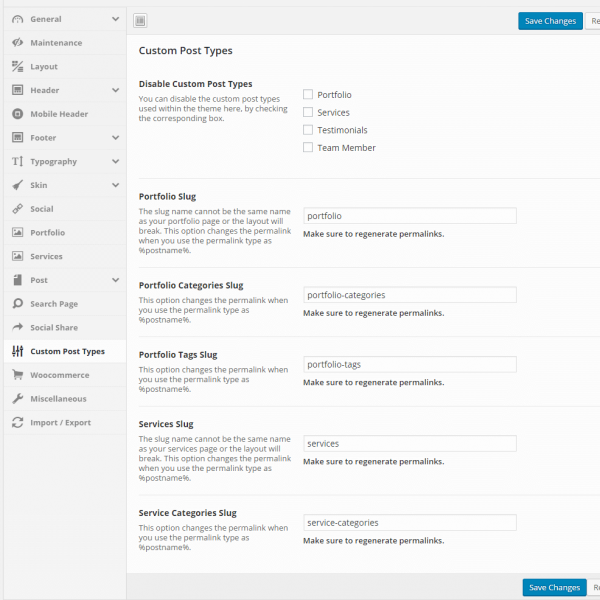
Custom Post Types – These options allow you to enable or disable and customize all the custom post types in the theme.
Woo commerce – These options assist with the integration between Woocommerce and Aven.
Miscellaneous – These options allows you enable or disable the minify scripts and css files.
Import/Export – These options allow you to import or export the file for your theme.
General
Mobile Header
Social
Search Page
Miscellaneous
Maintenance
Footer
Portfolio
Social Share
Import/Export
Layout
Typography
Services
Custom Post Types
Custom Post Types
Header
Skin
Posts
Woo commerce
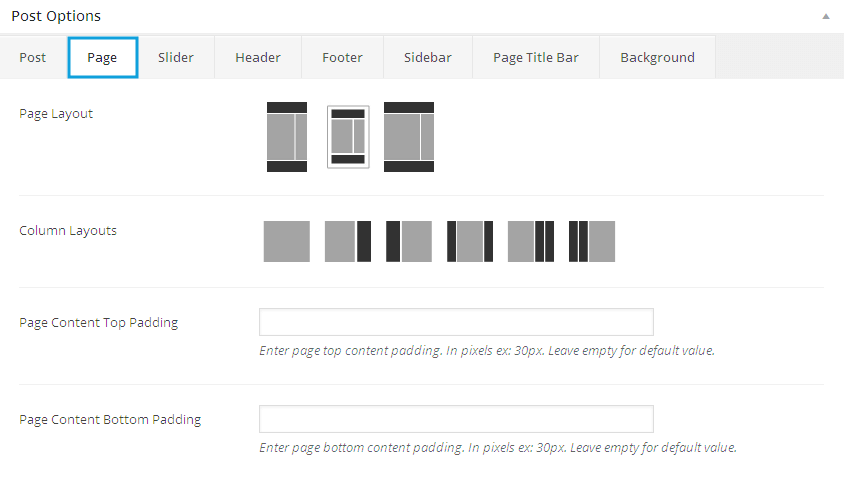
Page – In page option, you can choose the page layout, columns and customize the page individually.
Slider – These options allow you to select the slider on the current page. It allow you to select a slider and set it’s position.
Header – Header option allows you to enable/disable the header and select its background options.
Footer – Footer option allows you to enable/disable the footer and select its background options.
Sidebar – Sidebar options allow you to select the dynamic sidebar for your theme.
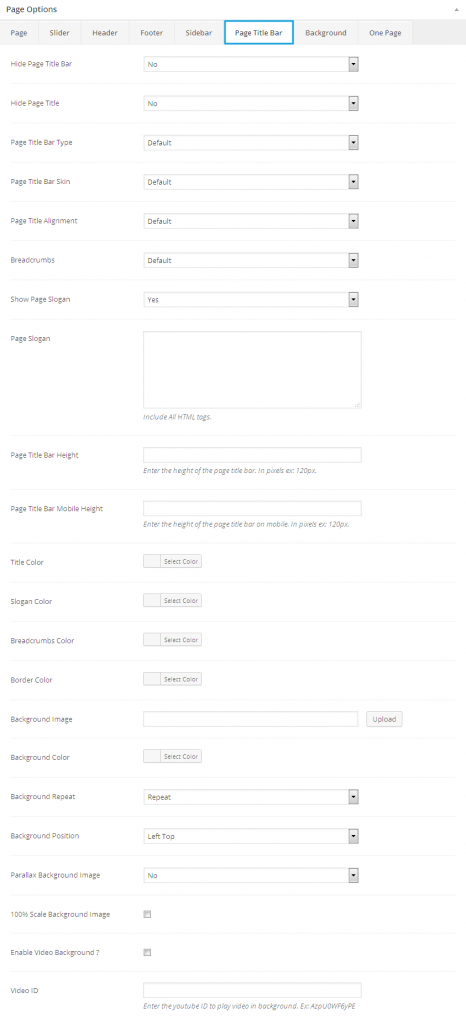
Page Title Bar – These option allows you to enable/disable the page title bar and its background options.
Background – This allows you to choose body, page background options and individually customize the current page’s background.
One Page – This allows you to select the one page section options.
Page
Page Layout – You can choose Page Layout such as Default option, Boxed Layout, Fullwidth Layout.
Column Layout – These options allow you to select column layout.
Page Content Top Padding – Enter page top content padding. In pixels ex: 30px. Leave empty for default value.
Page Content Bottom Padding – Enter page bottom content padding. In pixels ex: 30px. Leave empty for default value.
Slider
Slider Position – You can Select if the slider shows below or above the header.
Revolution Slider Shortcode – These options allow you to enter shortcode for Revolution Slider
Header
Display Header – You can choose to show or hide the header.
Display Header Top Bar – These options allow you to choose to show or hide the header top bar.
Header Layout – You can Header Layout choose header layout.
Header Transparency – You can choose header Transparency.
Main Navigation Menu – Choose which menu displays on this page.
Background Image – You can choose the Background Image and click Upload button.
Background Color – You can Select background color for header.
Background Color Opacity – Choose opacity for Background Color.
Background Repeat – This option allow you to select the repeat options for background.
Background Attachment – This option allow you to select the attachment options.
Background Position – You can Select the position for background.
100% Scale Background Image – You can click checkbox to set 100% Scale for your Background Image.
Footer
Display Footer Widget Area – Choose to show or hide the footer widget area.
Sidebar
Select Sidebar 1 – Primary Sidebar works on two column & three column layouts.
Select Sidebar 2 – Secondary Sidebar works only on three column layouts.
Page Title Bar
Hide Page Title Bar – This option allow you to Enable/Disable the Page Title Bar option.
Hide Page Title – This option allow you to Enable/Disable the Page Title option.
Page Title Bar Type – You can choose Type such as Default or Mini for Page Title Bar.
Page Title Bar Skin – You can choose Skin such as Default or Dark for Page Title Bar.
Page Title Alignment – You can choose alignment options for Page Title.
Breadcrumbs – You can select default breadcrumbs or select show or hide option.
Show Page Slogan – Enable/Disable the page slogan option.
Page Slogan – You can Enter the Page Slogan Include All HTML tags.
Page Title Bar Height – Enter the height of the page title bar. In pixels ex: 120px.
Page Title Bar Mobile Height – Enter the height of the page title bar on mobile. In pixels ex: 120px.
Title Color – Select color for Page Title.
Slogan Color – Select color for Slogan.
Breadcrumbs Color – Select color for breadcrumbs.
Video ID – Enter the youtube ID to play video in background. Ex: AzpU0WF6yPE
Border Color – Select border color for Page Title Bar.
Background Image – Select background image for Page Title Bar.
Background Color – Select background color for Page Title Bar.
100% Scale Background Image – Primary Sidebar works on two column & three column layouts.
Enable Video Background ? – Click checkbox to Enable the Video Background on this Page.
Background
Page Background Image – This option allow you to upload the background image for Page.
Page Background Position – Choose background position option.
Page Background Color – Choose background position option.
Background Color Opacity – Choose background color opacity.
100% Scale Background Image – Click on Checkbox to enable scale for Background Image.
Boxed Mode Options – You can set above same options for Boxed Mode Options.
One Page
Section Header – This allows you to show or hide the Header for each sections in One Page.
Section Title – This allows you give the section title for showing in one page.
Section Slogan – This allows you give the section slogan for showing in one page.
Section Padding Top – You need a space for each section which is showing one by one. So enter the value for Padding Top.
Section Padding bottom – You need a space for each section which is showing one by one. So enter the value for Padding Bottom.
Section Header Padding Bottom – You need a space after the header. So enter the value for Padding Bottom.
Section Colors – You can choose the colors for following options such as Section Title Color, Section Slogan Color, Section Text Color, Section Content Heading Tags Color, Section Background Color.
Parallax Mode – This option allows you to set the parallax mode for sections added in one page.
Parallax Background Image – This option allows you to set the background image for the parallax section. Choose the file for parallax background and click upload image.
Background Image Options – You can choose the background image settings such as Background Repeat, Background Attachment, Background Position, Background Size.
Parallax Background Overlay – This allow you to add overlay and customize the options such as Overlay, Overlay pattern, Overlay Pattern Style, Section Overlay Color, Overlay Color Opacity.
Parallax Additional Sections – You can optionally add some other sections in parallax without adding section in a menu. Choosed sections will show below to this current section in choosen order.
Gallery – These options allow you to add the gallery images for the service custom posts.
Page – In page option, you can choose the page layout, columns and customize the page individually.
Header – Header option allows you to enable/disable the header and select its background options.
Footer – Footer option allows you to enable/disable the footer and select its background options.
Sidebar – Sidebar options allow you to select the dynamic sidebar for your theme.
Page Title Bar – These option allows you to enable/disable the page title bar and its background options.
Background – This allows you to choose body, page background options and individually customize the current page’s background.
Gallery
Gallery – You can add images for services gallery post by uploading image.
Page
Page Layout – You can choose Page Layout such as Default option, Boxed Layout, Fullwidth Layout.
Column Layout – These options allow you to select column layout.
Page Content Top Padding – Enter page top content padding. In pixels ex: 30px. Leave empty for default value.
Page Content Bottom Padding – Enter page bottom content padding. In pixels ex: 30px. Leave empty for default value.
Header
Display Header – You can choose to show or hide the header.
Display Header Top Bar – These options allow you to choose to show or hide the header top bar.
Header Layout – You can Header Layout choose header layout.
Header Transparency – You can choose header Transparency.
Main Navigation Menu – Choose which menu displays on this page.
Background Image – You can choose the Background Image and click Upload button.
Background Color – You can Select background color for header.
Background Color Opacity – Choose opacity for Background Color.
Background Repeat – This option allow you to select the repeat options for background.
Background Attachment – This option allow you to select the attachment options.
Background Position – You can Select the position for background.
100% Scale Background Image – You can click checkbox to set 100% Scale for your Background Image.
Footer
Display Footer Widget Area – Choose to show or hide the footer widget area.
Sidebar
Select Sidebar 1 – Primary Sidebar works on two column & three column layouts.
Select Sidebar 2 – Secondary Sidebar works only on three column layouts.
Page Title Bar
Hide Page Title Bar – This option allow you to Enable/Disable the Page Title Bar option.
Hide Page Title – This option allow you to Enable/Disable the Page Title option.
Page Title Bar Type – You can choose Type such as Default or Mini for Page Title Bar.
Page Title Bar Skin – You can choose Skin such as Default or Dark for Page Title Bar.
Page Title Alignment – You can choose alignment options for Page Title.
Breadcrumbs – You can select default breadcrumbs or select show or hide option.
Show Page Slogan – Enable/Disable the page slogan option.
Page Slogan – You can Enter the Page Slogan Include All HTML tags.
Page Title Bar Height – Enter the height of the page title bar. In pixels ex: 120px.
Page Title Bar Mobile Height – Enter the height of the page title bar on mobile. In pixels ex: 120px.
Title Color – Select color for Page Title.
Slogan Color – Select color for Slogan.
Breadcrumbs Color – Select color for breadcrumbs.
Video ID – Enter the youtube ID to play video in background. Ex: AzpU0WF6yPE
Border Color – Select border color for Page Title Bar.
Background Image – Select background image for Page Title Bar.
Background Color – Select background color for Page Title Bar.
100% Scale Background Image – Primary Sidebar works on two column & three column layouts.
Enable Video Background ? – Click checkbox to Enable the Video Background on this Page.
Background
Page Background Image – This option allow you to upload the background image for Page.